Viewing a Playbook
Understanding phases, sections, conditions, and personalised content.
When you open a playbook, you are presented with a structured, phase-by-phase view of the incident response procedure. Every playbook in CrownSync follows the six-phase methodology, and the content you see is personalised based on your organisation's profile.
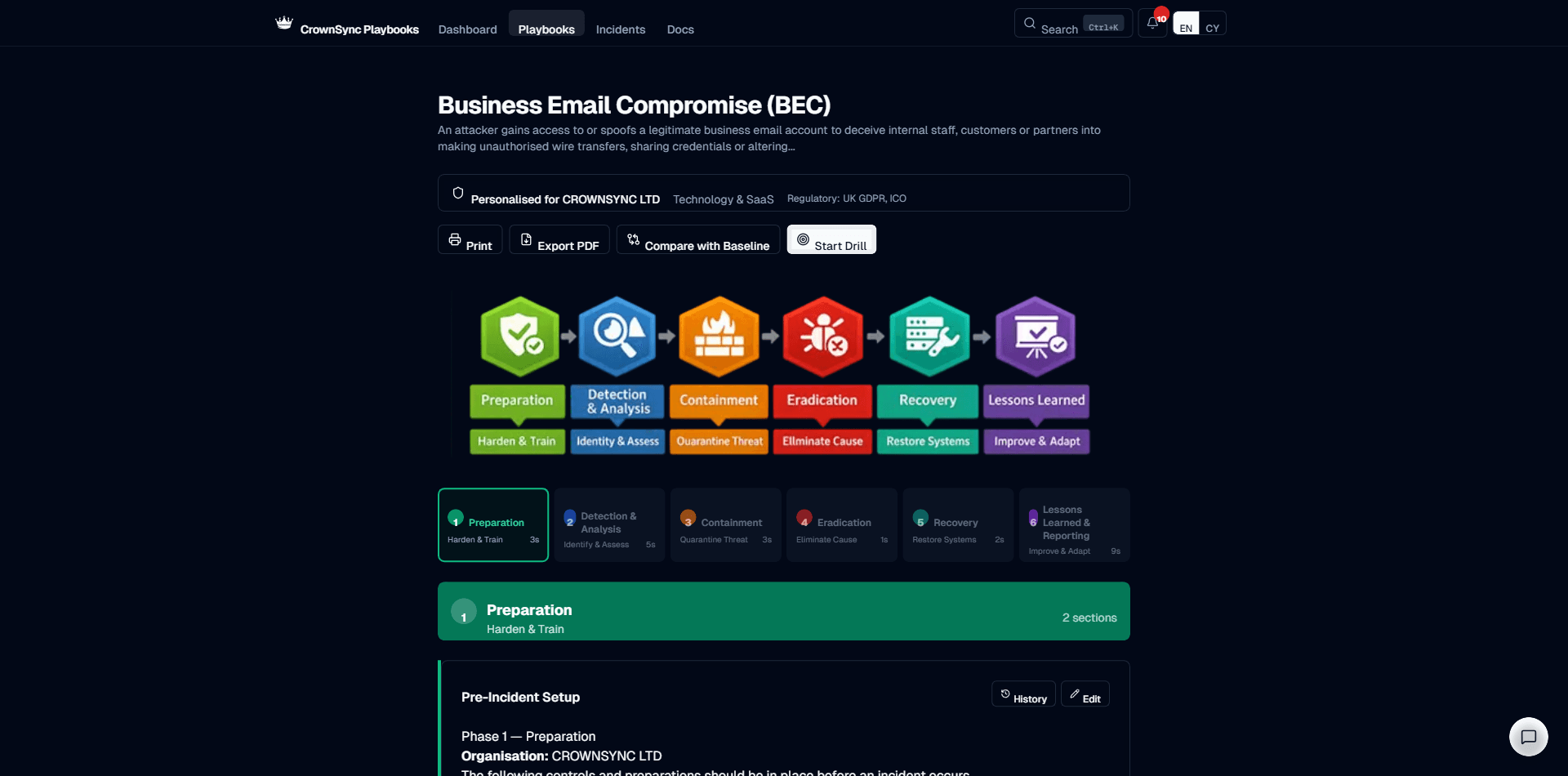
The Six Phases
Each playbook is divided into six sequential phases, displayed as expandable sections in the playbook viewer:
- Preparation — Preventive measures, training, and readiness activities
- Detection & Analysis — Identifying the incident and assessing its scope
- Containment — Isolating the threat to prevent further damage
- Eradication — Removing the root cause from your environment
- Recovery — Restoring systems and verifying normal operations
- Lessons Learned — Post-incident review and process improvements
Each phase contains multiple sections, and each section addresses a specific aspect of the response for that stage. You can expand or collapse phases as needed while working through the playbook.
Section Cards
Within each phase, individual sections are displayed as cards. Each section card shows:
- The section title and a brief description of what it covers
- The section content, rendered as formatted markdown with headings, lists, and tables
- Condition badges indicating why this section is visible (see below)
- An edit button if you have permission to customise the content
- A version indicator if the section has been modified from the baseline
Condition Badges
CrownSync Playbooks uses a conditional content engine to show only the sections relevant to your organisation. Each section card displays one or more condition badges explaining why it appears:
- Always — This section is shown to every organisation regardless of profile. Core incident response steps that apply universally carry this badge.
- regulatory:ukgdpr — This section appears because your organisation has the UK GDPR regulatory flag enabled. It contains guidance specific to data protection obligations.
- regulatory:fca — Visible to FCA-regulated firms, with content covering Financial Conduct Authority notification requirements.
- regulatory:pcidss — Sections specific to PCI DSS compliance and payment card incident procedures.
- tech:microsoft365 — Content tailored to organisations using Microsoft 365 as their email and productivity platform.
- sector:healthcare — Healthcare-specific guidance, including DSPT reporting requirements and patient data considerations.
| Badge | Meaning |
|---|---|
| always | This section appears for all organisations |
| regulatory:ico | Shown when ICO reporting obligations apply |
| regulatory:fca | Shown when FCA regulatory requirements apply |
| itTeam:internal | Shown for organisations with an internal IT team |
| insurance:yes | Shown when the organisation has cyber insurance |
Understanding conditions
Condition badges are determined by the profile your organisation set during onboarding. If you believe a section should appear but does not, check your organisation settings to ensure the correct regulatory flags, sector, and tech stack are configured.
Personalised Placeholders
Throughout the playbook content, you will encounter placeholders that have been replaced with your organisation's actual details. These include:
- Organisation name — Your registered company name appears in context wherever the playbook references the affected organisation.
- Contact details — Email addresses, phone numbers, and escalation contacts from your profile are inserted into relevant sections.
- Technology references — Instructions reference your specific tools (e.g., “Disable the compromised account in Azure AD” rather than a generic “Disable the compromised account in your identity provider”).
- Regulatory bodies — The correct regulator names and contact details are populated based on your regulatory flags.
Access Modes
The playbook viewer adapts based on your access level and role:
- Full access (Owner/Admin) — View all sections, edit content, manage collaborators, export PDFs, and access version history.
- Member access — View all sections and export PDFs. Editing permissions depend on whether the admin has granted edit rights for specific sections.
- Collaborator access — View and edit only the specific sections assigned to you. All other content is hidden. Access is via magic link with TOTP verification.
The viewer clearly indicates your current access mode at the top of the page, so you always know what actions are available to you.
Was this page helpful?